Theming Your Convention
Colours
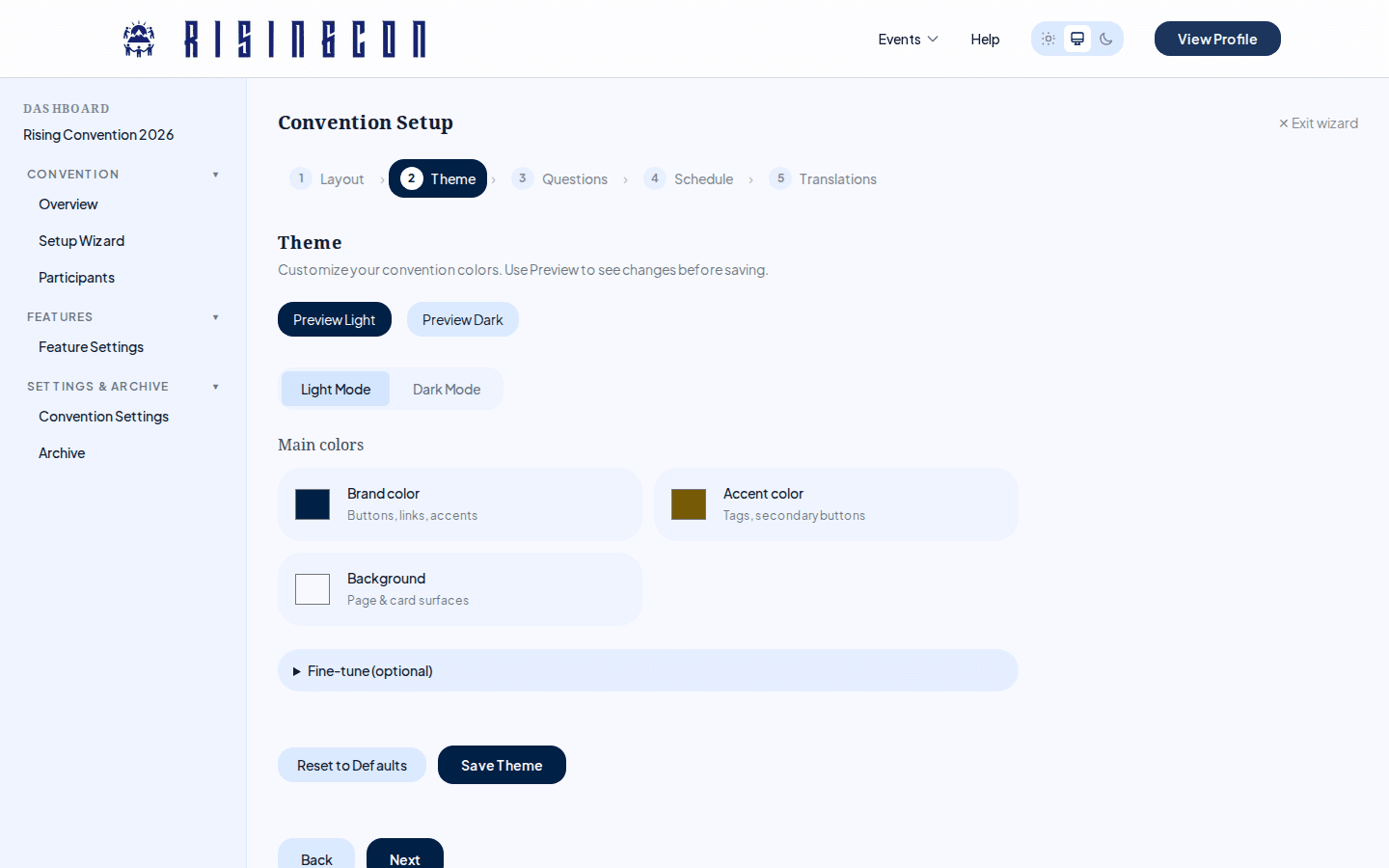 The theme colour editor with Light Mode and Dark Mode tabs, showing the three essential colour swatches and the collapsible fine-tune drawer
Convention colours are configured in Setup Wizard → Step 2: Theme.
The colour editor has two tabs: Light Mode and Dark Mode. Visitors who use dark mode on their device will see the dark mode palette; everyone else sees the light mode palette.
Essential Colours
You only choose three colours — the rest of the palette is derived from them automatically:
| Colour | What it controls |
|---|---|
| Brand color | Buttons, links, and accents — the main brand colour. |
| Accent color | Tags and secondary buttons. |
| Background | Page and card surfaces. |
Each colour has a swatch — click it to open the colour picker.
Fine-tune (optional)
Expand the collapsible Fine-tune (optional) drawer for individual control over specific tokens: text colour, brand gradient end, brand button text, accent surface, accent text, card depth, and borders. Each token follows the auto-derived palette until you click Customize on it; Reset to auto returns it to automatic derivation.
Dark Mode
On the Dark Mode tab, the palette is auto-generated from your light-mode colours by default (shown read-only). Choose Customize separately if you want to set the dark-mode colours by hand — the generated palette is used as the starting point.
Previewing Colours
Use the preview buttons to see your colours live on the current page before saving:
- Preview Light — applies your light mode colours immediately.
- Preview Dark — applies your dark mode colours and switches the page to dark mode.
- Reset Preview — reverts the page to its original state.
The preview only affects your current session. Other visitors continue to see the saved colours.
Resetting to Defaults
Click Reset to Defaults to restore all colours to the built-in Celestial palette (the platform's default design system). This does not save — you still need to click Save Theme to persist the reset.
Tips
- Your Brand color is the most visible — it defines the overall feel of the page. Choose a colour that represents your convention's identity.
- If text on brand-coloured buttons looks wrong with your chosen brand colour, adjust Brand button text in the Fine-tune drawer.
- Keep the Background colour light enough in light mode to remain readable — the dark-mode palette is generated to stay legible automatically.
Logo
The convention logo is uploaded from Convention Settings (sidebar → Settings & Archive → Convention Settings), not from the Theme step. The logo appears in the convention navigation bar.
- Accepted formats: JPEG, PNG, WebP
- Maximum size: 2 MB
- The logo saves immediately on upload.
Landing Page
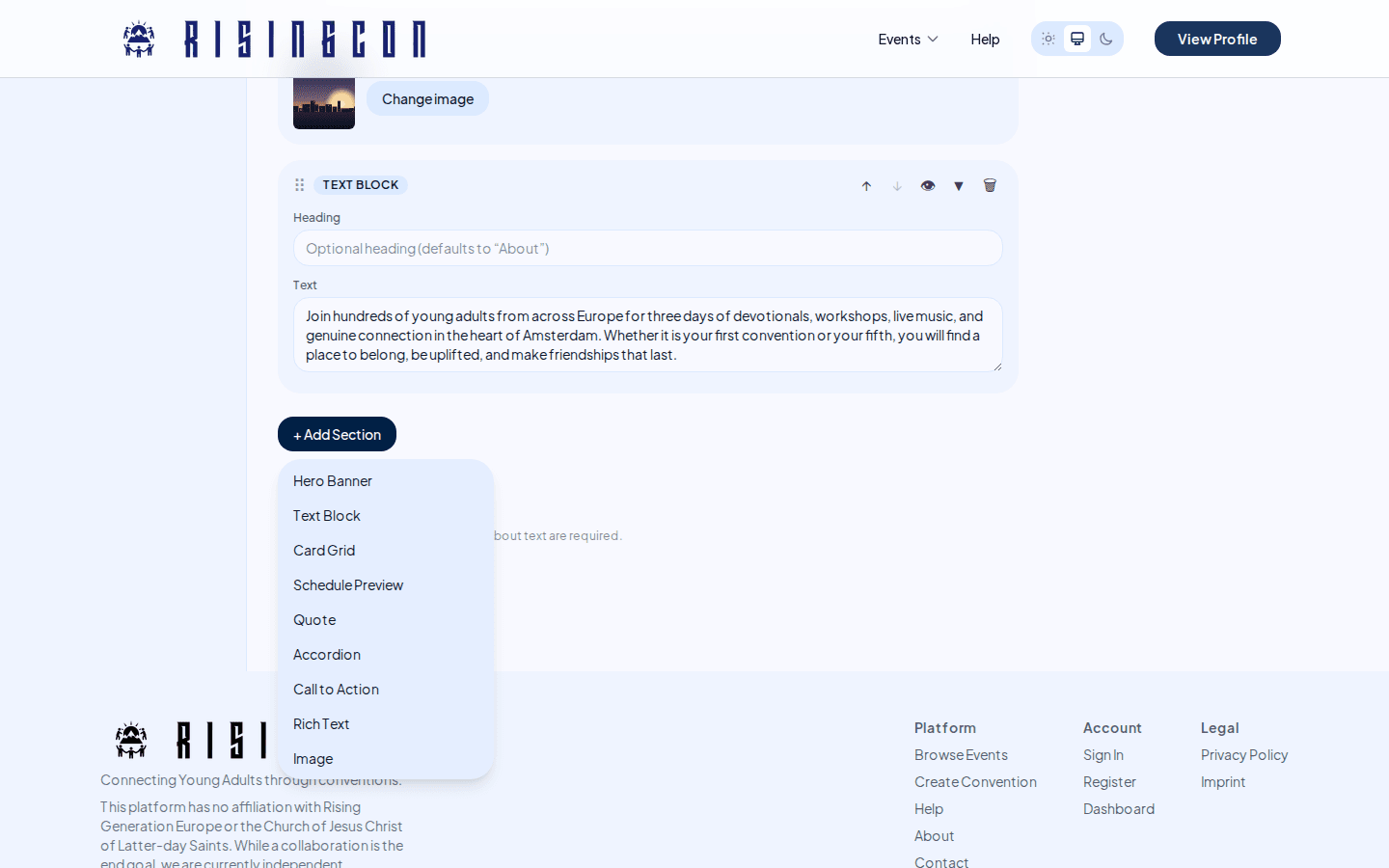 The landing page editor showing a list of section cards with editable fields and a version history below
The convention's public home page is built in Setup Wizard → Step 1: Layout using the section designer. The page is a list of sections — click + Add Section to add one, and use the controls on each section card to reorder (drag, or move up/down), hide, or delete it. The same section type can be used more than once.
Available Sections
| Section | Purpose |
|---|---|
| Hero Banner | Large banner at the top of the page with title, subtitle, and a hero image. |
| Text Block | A heading and paragraph — e.g. to describe the convention. |
| Card Grid | A collection of key points shown as cards (e.g. "Keynote speakers", "Workshops"). |
| Schedule Preview | A short text overview of the programme. |
| Quote | A featured quote with attribution. |
| Accordion | Collapsible question-and-answer rows — ideal for an FAQ. |
| Call to Action | A closing message with a button linking to a registration page or external URL. |
| Rich Text | Free-form Markdown content. |
| Image | A standalone image with alt text and caption. |
Editing Sections
Each section has its own set of fields. Click into any field and start typing — changes are held in memory until you click Save Landing Page.
For Card Grid and Accordion, entries are key-value pairs (title + description, or question + answer). Use the + Add card / + Add row button to add entries and the Remove button to delete them.
Versions
Each time you save the landing page, a new version is created. The version history is shown below the editor. This allows you to track changes over time, though you cannot restore an older version through the UI.
Translations
If your convention has multiple languages configured, each piece of landing page content can be translated. See the Translations step in Creating a Convention for details.