Creating a Convention
Step 1: The Creation Form
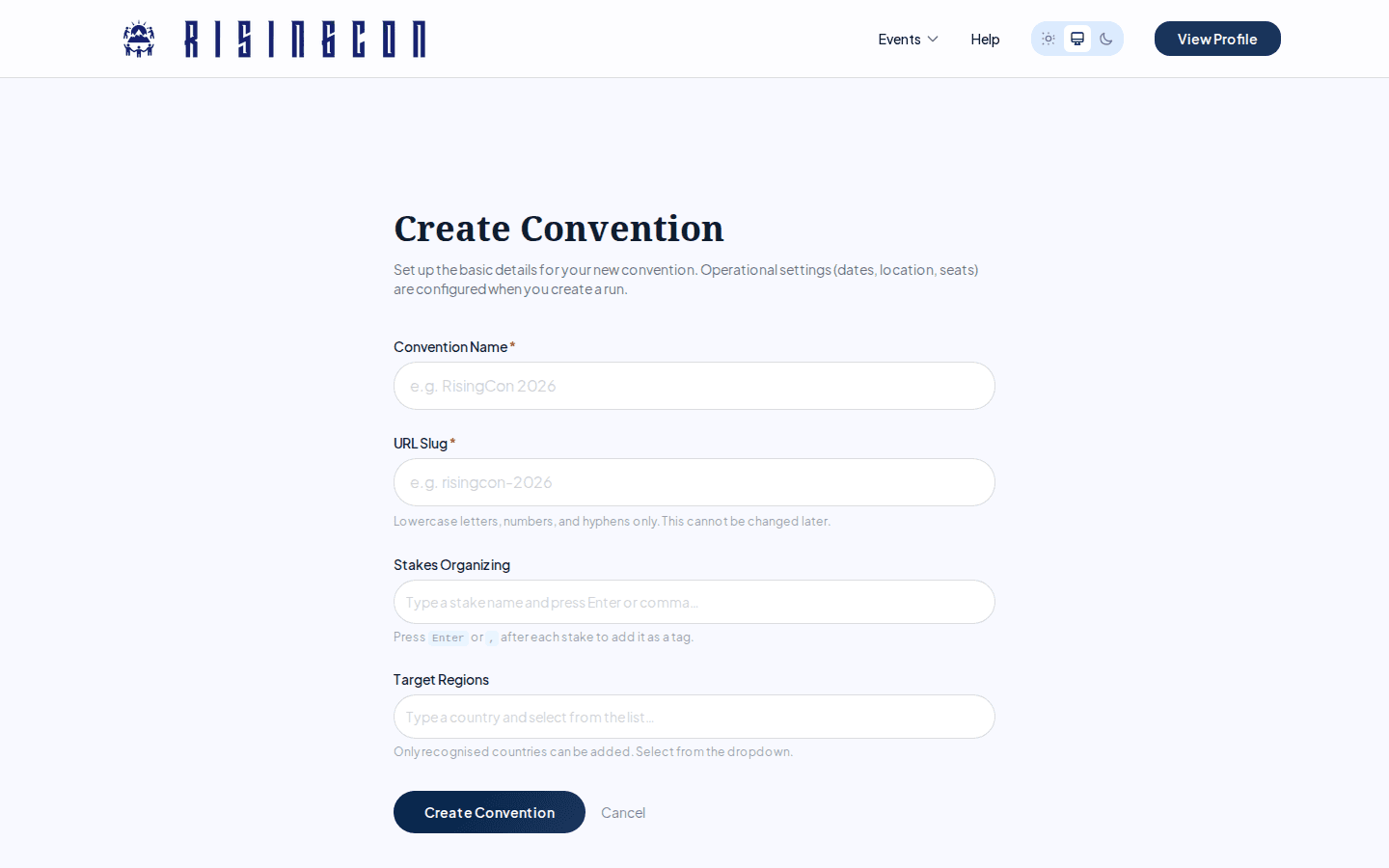 The Create Convention form with fields for Convention Name, URL Slug, Stakes Organizing, and Target Regions
Click Create Convention from your dashboard to open the creation form.
Fields
| Field | Required | Notes |
|---|---|---|
| Convention Name | Yes | The public name shown on listings. |
| URL Slug | Yes | Becomes part of the web address (e.g. my-con-2026). Only lowercase letters, numbers, and hyphens. Cannot be changed after creation. Max 63 characters. |
| Stakes Organising | No | Tag input — press Enter or comma to add multiple stakes. |
| Target Regions | No | Select recognised countries from the suggestions list. Used to filter suggested languages and limit the location autocomplete in run creation. |
The slug is checked for availability in real time — a confirmation appears once you type one that is free. Once the convention is created you are taken to the organiser dashboard.
Step 2: Submit for Review
New conventions start in Draft status and are not visible to the public. You must submit the convention for a platform admin to review before any run can go live.
From the Overview page in your dashboard, click Submit Convention for Review. The status changes to Pending. You will be notified once it is reviewed.
Important: A convention is not reviewed automatically. It stays in Draft — invisible to admins and the public — until you click Submit Convention for Review. No run can be created or go live until an admin approves the submitted convention, so submit it as soon as the details are correct.
Step 3: The Setup Wizard
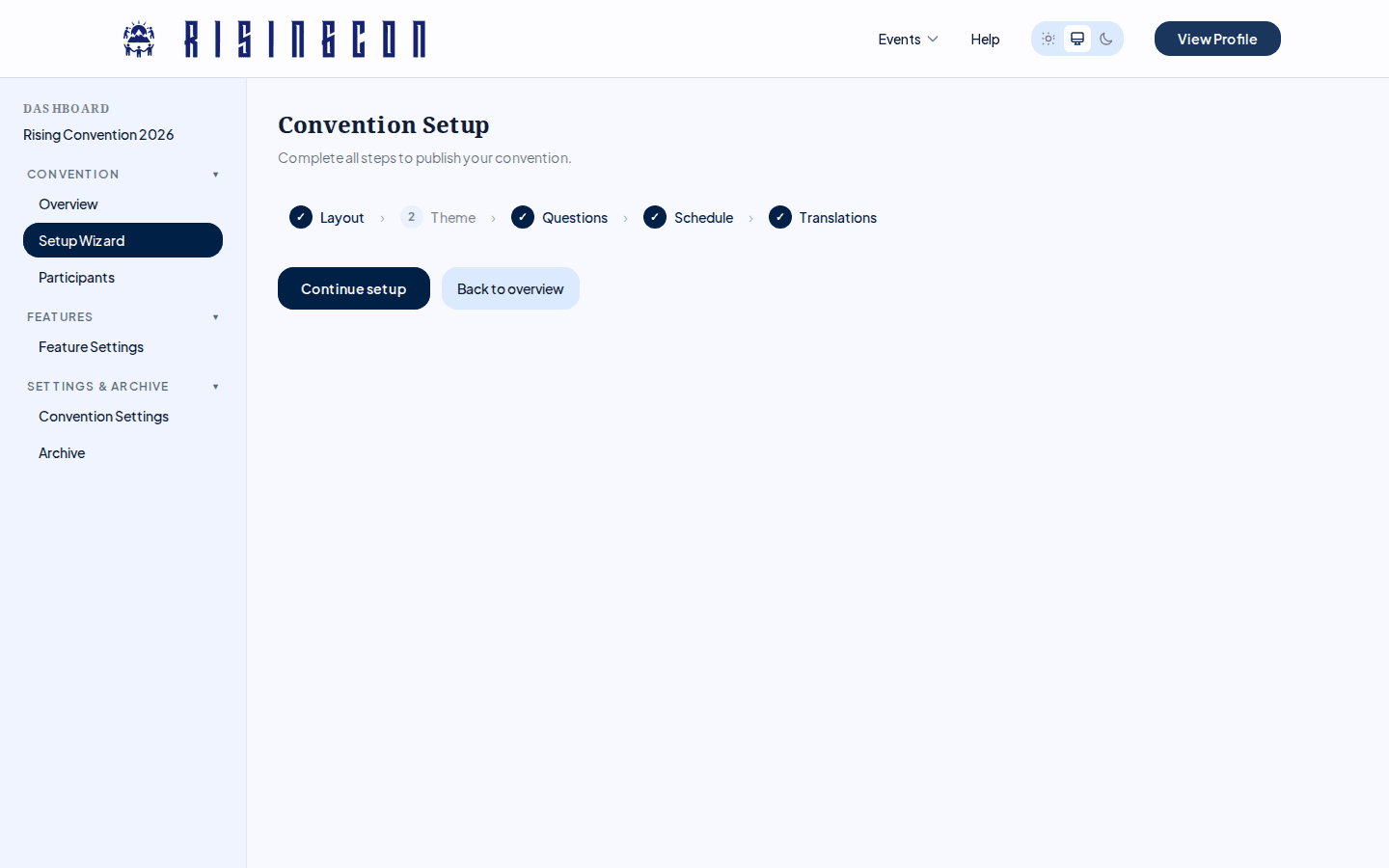 The setup wizard overview showing five steps with completion checkmarks for Layout, Theme, and Translations
After your convention is approved, open the Setup Wizard from the sidebar. The wizard has five steps:
[1] Layout › [2] Theme › [3] Questions › [4] Schedule › [5] Translations
Steps 3 (Questions) and 4 (Schedule) only appear once you have created a convention run with dates and location. The wizard shows a progress indicator at the top; completed steps are marked with a checkmark.
Saving Your Work
Each step saves only when you click that step's own Save button (e.g. Save Landing Page, Save Theme, Save Config). The Back and Next buttons at the bottom of the wizard are navigational only — they do not save your changes, and there is no automatic draft saving. Save the step you are working on before navigating away. (The Schedule step is the exception: sessions there are saved individually as you create or edit them.)
Wizard Step 1: Layout (Landing Page)
Build the public landing page for your convention using the section designer. The page is a list of sections that you can freely add, remove, reorder, and hide. Click + Add Section to choose from nine section types:
| Section | Fields | Notes |
|---|---|---|
| Hero Banner | Title, Subtitle, Image | Title is shown large at the top of the page. |
| Text Block | Heading (optional), Text | Describe what the convention is about. |
| Card Grid | Heading (optional), Title → Description cards | Add/remove cards. e.g. "Keynote speakers" → "Three inspiring speakers..." |
| Schedule Preview | Free text | A short overview (e.g. "Friday workshops, Saturday keynote"). |
| Quote | Quote text, Attribution | A featured quote. |
| Accordion | Heading (optional), Question → Answer rows | Collapsible Q&A, ideal for an FAQ. |
| Call to Action | Text, Button label, Button URL | A closing message with a button. |
| Rich Text | Markdown | Free-form formatted text. |
| Image | Image upload, Alt text, Caption | A standalone image block. |
You can add a section type more than once, drag sections to reorder them (or use the move up/down controls), and temporarily hide a section without deleting it.
The step is marked Complete once the page has a visible Hero Banner with a title and a visible Text Block with text.
Click Save Landing Page to persist. Each save creates a new version — you can see the version history below the sections.
Wizard Step 2: Theme
Set your convention's colour scheme. You only need to pick three essential colours — everything else is derived automatically:
- Brand color — buttons, links, and accents
- Accent color — tags and secondary buttons
- Background — page and card surfaces
For more control, expand the collapsible Fine-tune (optional) drawer. It lists individual tokens (text colour, brand gradient end, accent surface, borders, and more), each following the auto-derived palette until you click Customize on it; Reset to auto hands the token back to automatic derivation.
The editor has Light Mode and Dark Mode tabs. Dark mode is auto-generated from your light-mode colours by default; switch the Dark Mode tab to Customize separately if you want to set the dark palette by hand.
Use the Preview Light / Preview Dark buttons to see your colours applied to the current page before saving. Reset to Defaults reverts everything to the platform's Celestial palette. Click Save Theme to persist.
The step is marked Complete once the theme has been saved (the essential colours are always included in a save).
The convention logo is uploaded from Convention Settings, not from this step.
Wizard Step 3: Registration Questions
Define the custom questions that participants must answer when they register. You can save with zero questions if no custom fields are needed.
Question types:
| Type | Renders as | Use for |
|---|---|---|
| Text | Single-line text input | Names, notes, free text |
| Yes/No | Yes / No dropdown | Simple yes/no consent or preferences |
| Dropdown | Single-choice dropdown | Dietary requirements, t-shirt size, etc. |
| Multi-select | Multiple checkboxes | Activities, interests (multiple selections) |
For each question you set:
- Label — the text shown to participants (e.g. "Dietary Requirements")
- Required — whether the question must be answered before submitting
- Default value — pre-selected answer (not available for Multi-select)
- Options — the choices available (for Dropdown / Multi-select)
Questions are reorderable by dragging the ⠿ handle on each card. A question key is derived automatically from the label (you cannot edit it directly).
This step is only available once you have created a convention run.
Wizard Step 4: Schedule
Build the visual session schedule. See Convention Schedule for the full guide.
This step is only available once you have created a convention run.
Wizard Step 5: Translations
Add translations for your convention content so participants can view pages in their preferred language.
The translations overview lists all languages currently configured. Click Edit → next to a language to open the translation editor for that language. To add a new language, click + Add Translation or select from the Suggested Languages list (derived from your target regions).
For each language you translate:
- Landing page content (hero title, text blocks, card grids, accordion entries, etc.)
- UI labels (buttons, form fields)
- Session names (from the schedule)
- Registration question labels
This step is always marked Complete with the base language alone — translations are entirely optional, and a second language is never required.
Step 4: Create a Convention Run
Before you can activate your convention, you need to create a run — a specific occurrence with dates, location, and registration settings. See Convention Runs for the full guide.
Step 5: Go Live
Once both your convention and run are approved:
- Activate the run from the Overview page (click Activate Run).
- The convention becomes live. Registration follows the registration window (with no window configured it opens immediately), or you can force it open or closed from the Overview.
- Share the link with participants — use the Copy share link button on the Setup Wizard completion screen.