Dashboard Overview
My Conventions
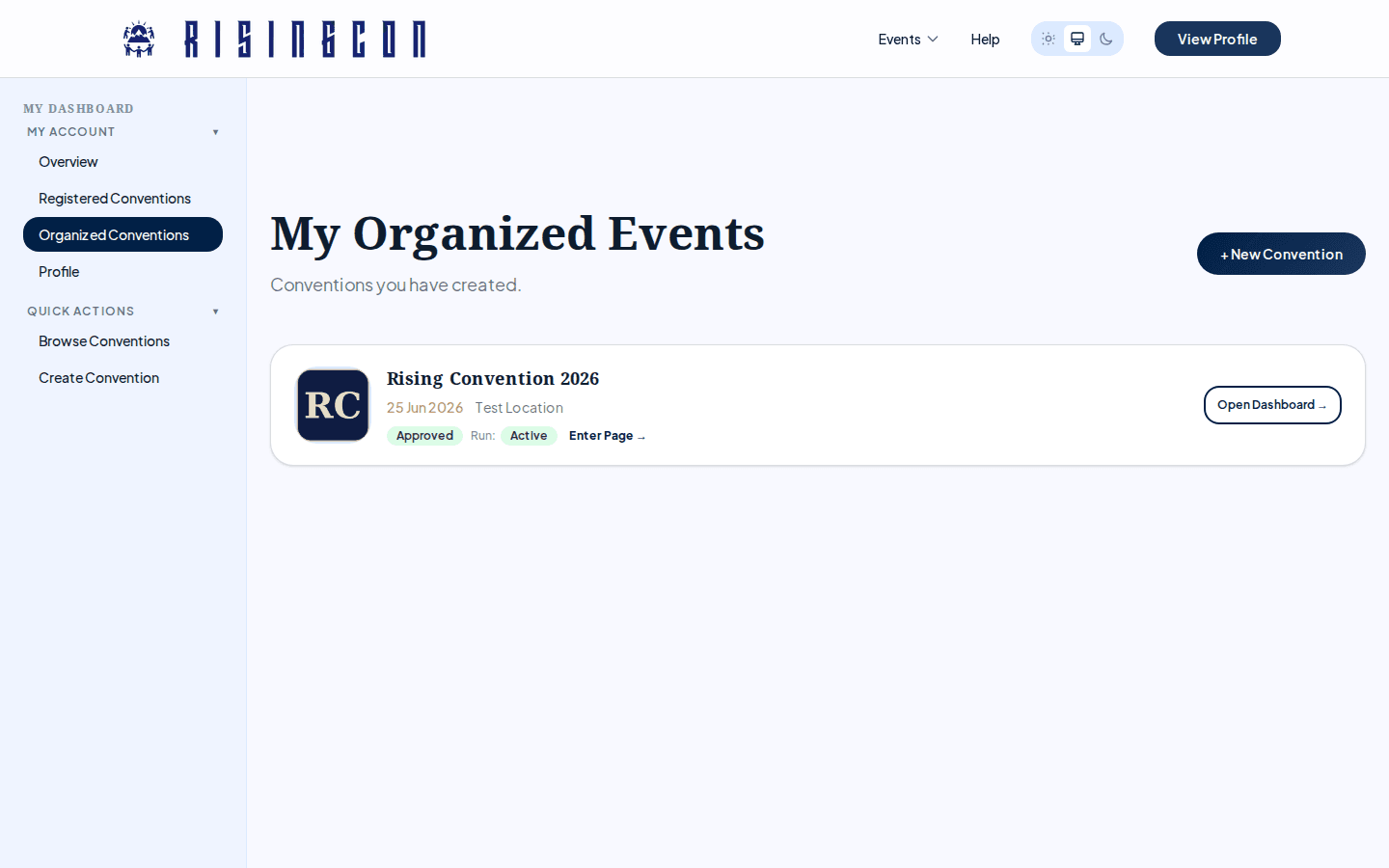 The My Conventions section of the dashboard showing convention cards with status badges and action buttons
After logging in, your Dashboard shows a My Conventions section listing all conventions you have created. Each convention card shows:
- The convention name and current status badge.
- Quick action buttons: Open Dashboard (to access organiser tools) and Create Run (when the convention is approved and no active run exists yet).
Click Create Convention to start a new one.
Navigating the Organiser Dashboard
Clicking Open Dashboard on a convention takes you into its organiser dashboard. The left sidebar contains all the management sections:
Convention
├─ Overview          — run lifecycle, registration controls, setup checklist
├─ Setup Wizard      — step-by-step guide for completing your setup
└─ Participants      — participant list (appears once a run exists)

Features
└─ Feature Settings  — toggle public-facing sections on or off

Settings & Archive
├─ Convention Settings — name, regions, stakes, logo
└─ Archive           — read-only history from previous runs
The Overview Page
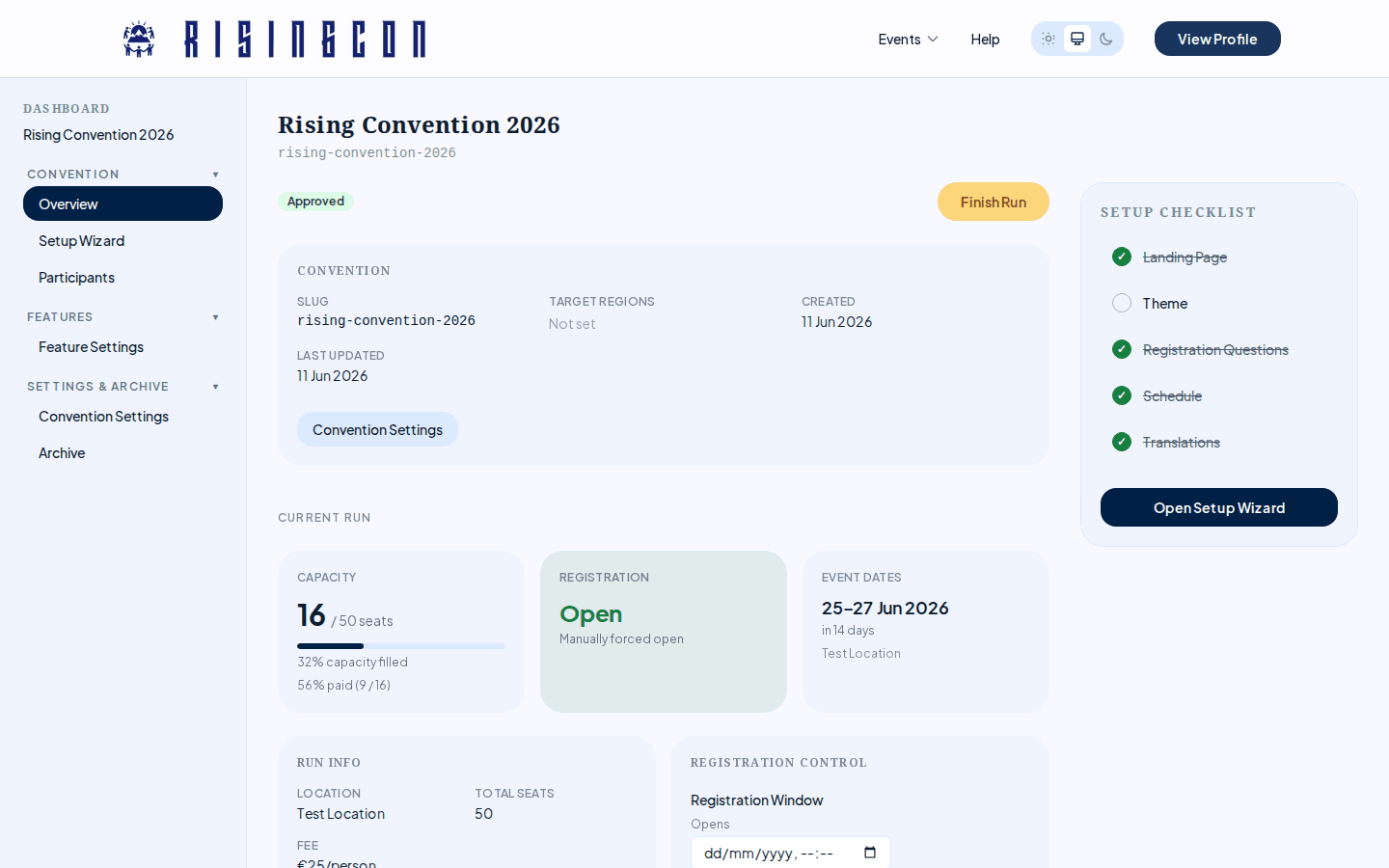 The convention overview page showing status, current run details, lifecycle action buttons, registration control panel, and the setup checklist
The Overview is your main control panel. It shows:
- Convention status — current approval status and the submit-for-review button.
- Current run details — dates, location, seat count, participant count (with a paid percentage for fee-bearing runs), and registration window.
- Run lifecycle buttons — the action button changes based on the run's current status (Submit, Activate, Finish, Archive).
- Registration control — when the run is Active: edit the registration window dates, override registration with Force Open / Force Closed / Use Schedule (Auto), and switch the Enable check-in toggle (only while registration is closed).
- Setup checklist — a quick summary of which wizard steps are complete, with a link to open the wizard.
Setup Checklist
The checklist on the Overview page shows five items:
| Item | Complete when |
|---|---|
| Landing Page | A visible Hero Banner with a title and a visible Text Block with text exist |
| Theme | The theme has been saved (the Brand and Background colours are always included) |
| Registration Questions | Saved at least once (can be zero questions) |
| Schedule | At least one session has been added |
| Translations | Always complete — the base language alone is enough; extra languages are optional |
When all items are complete, the wizard shows a completion screen with a share link for your convention.