Managing Participants
The Participants page appears in the sidebar as soon as your convention has a run. Navigate to Convention → Participants to open it.
The Participant Table
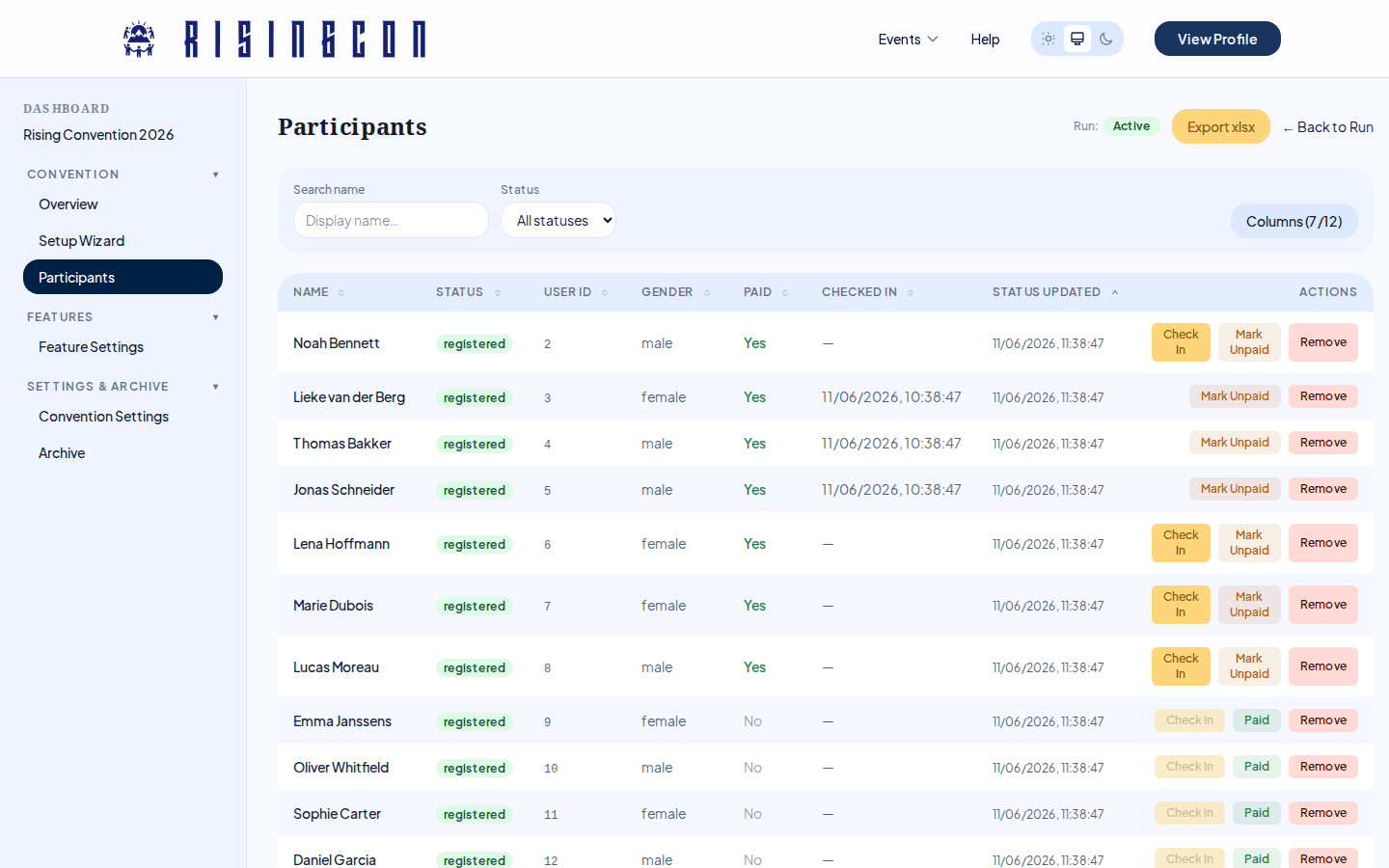 The participants table showing registered attendees with status badges, check-in timestamps, and filter controls
The table shows all participants with the following columns visible by default:
| Column | Description |
|---|---|
| Name | Display name (or #ID if no name set) |
| Status | Registration status (colour-coded badge) |
| User ID | Platform user ID |
| Gender | Gender from the participant's profile |
| Paid | Whether the participant's payment has been confirmed |
| Checked In | Date and time of check-in, if checked in |
| Status Updated | When the registration status last changed |
A column is also added automatically for each custom registration question you configured. Further columns — ID, Date of Birth, Driver, Seats, and Registered At — are hidden by default and can be enabled via the Columns picker.
Participant Statuses
| Status | Badge colour | Meaning |
|---|---|---|
| Registered | Green | Accepted and confirmed. |
| Waitlisted | Yellow | The run reached capacity; participant is in the waitlist queue. |
| Cancelled | Gray | The participant cancelled their own registration. |
| Removed | Red | The participant was removed by an organiser. |
Filtering and Searching
Use the toolbar above the table to narrow the list:
- Search — filters by participant display name in real time.
- Status filter — show all statuses, or filter to Registered, Waitlisted, or Cancelled.
- Columns — click to open a column picker and show or hide any column. Your choices are saved and persist between sessions.
Sorting
Click a column header to sort by that column (most columns are sortable — question columns are not). Click again to toggle between ascending and descending. The default sort is by Status Updated (ascending).
Viewing Participant Details
Click any row to open the Participant Detail Modal, which shows:
- Identity: ID, User ID, display name, gender, date of birth
- Registration: status, timestamps, paid status, check-in time
- Transport: whether they offered to drive, how many seats
- Registration answers: all custom question responses
- Consent: whether they agreed to appear on the public participants list
Confirming Payments
For runs with a registration fee, payments are tracked manually — collect the money however suits you (bank transfer, payment platform, cash) and record it here:
- In the table row, click Paid to confirm a participant's payment, or Mark Unpaid to undo it.
- Or open the participant's detail modal and click Confirm Payment (or Mark Unpaid) in the footer.
These buttons appear only on fee-bearing runs, for Registered participants, while the run is not Finished. The confirmation timestamp is stored alongside the paid flag.
Checking In Participants
To mark a participant as present at the event:
- In the table row, click Check In (shown for Registered participants who are not yet checked in, while the run is not Finished).
- Or open the participant's detail modal and click Check In in the footer.
Two prerequisites must be met before the button becomes clickable:
- Check-in must be enabled on the run — use the Enable check-in toggle on the Overview page. The toggle can only be switched while registration is closed.
- For runs with a fee, the participant's payment must be confirmed first.
If either prerequisite is missing, the button is disabled and a tooltip explains why ("Check-in is not enabled for this run" / "Payment must be confirmed before check-in").
The checked-in timestamp is recorded immediately.
Removing a Participant
To remove a registered participant from the run:
- Click the participant's row to open the detail modal, or find the Remove button in the table row.
- Confirm the removal in the prompt.
Removal is only available when the run is Active and the participant status is Registered. Removed participants are excluded from the participant count and from the public participants list.
You cannot remove a participant once the run is Finished.
Pagination
The table shows 50 participants per page. Use the ← Prev and Next → buttons at the bottom to navigate. The counter shows the current range (e.g. "Showing 1–50"); the total count is shown once you reach the last page.
Exporting Participants
Click Export xlsx in the page header to download the full participant list as an Excel file. The export has a fixed set of columns (ID, user ID, name, status, gender, date of birth, paid, payment verified at, checked in, driver, seats, registered/updated timestamps) plus one column per custom question — regardless of which columns you have visible in the table. Question columns are headed by the question's label.