Registration Form
You can add custom questions to the registration form that participants fill in when they register for your convention run. The questions are configured in Setup Wizard → Step 3: Questions.
The registration questions step is only accessible once you have created a convention run.
Question Types
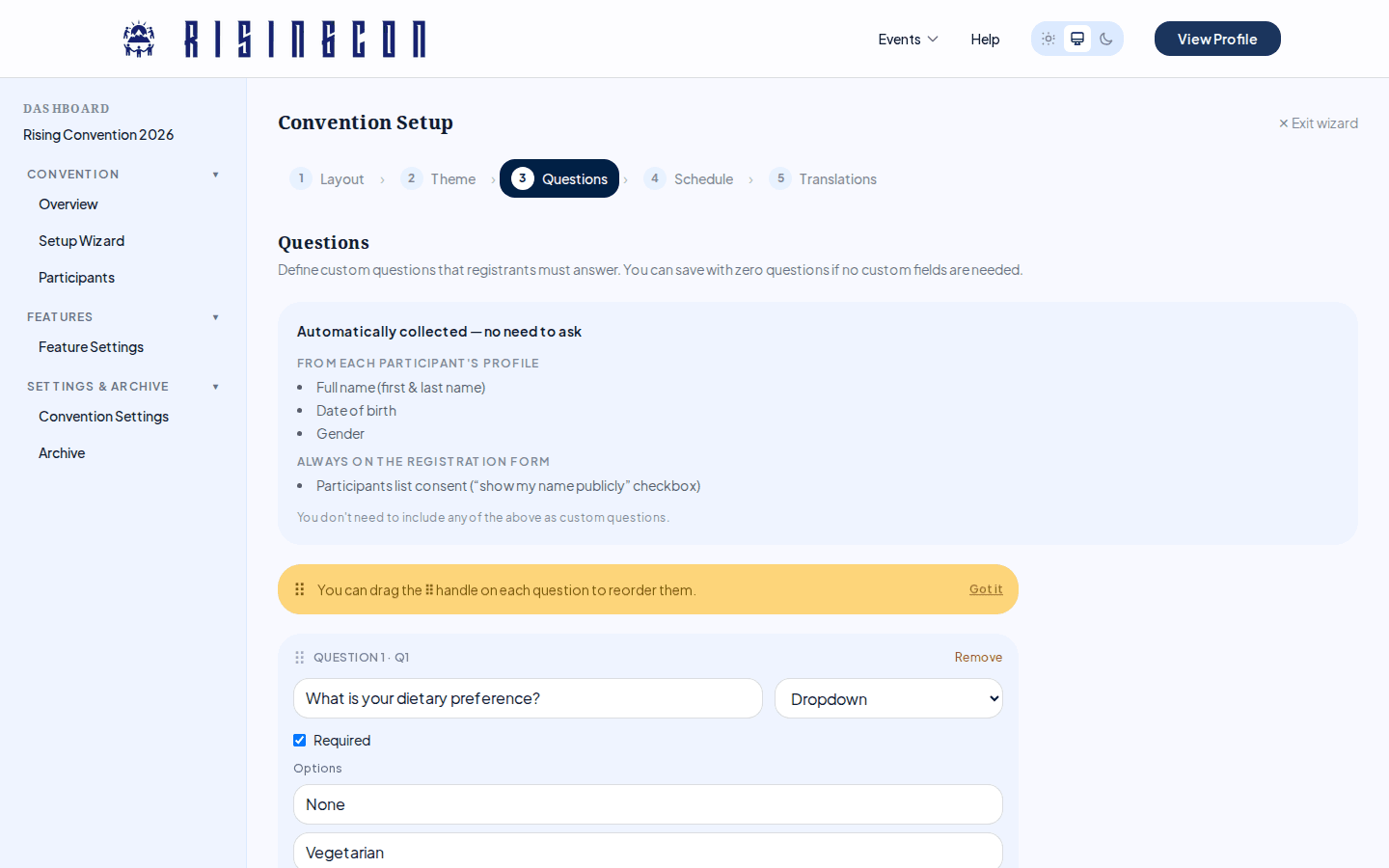 The registration questions editor showing example questions of different types with drag handles and configuration options
RisingCon supports four question types:
Text
A single-line text input. Use it for anything that needs a free-text answer.
Example:
Label:    "Emergency contact name"
Required: Yes
Yes/No
A Yes / No dropdown. Use it for simple consent or preference questions.
Example:
Label:    "I have a valid passport"
Required: Yes
Default:  No default
Dropdown
A single-choice dropdown. You define the available options.
Example:
Label:   "Dietary requirements"
Options: Vegetarian / Vegan / Gluten-free / No preference
Default: No preference
Multi-select
Multiple checkboxes where participants can tick all that apply.
Example:
Label:   "Which workshops would you like to attend?"
Options: Leadership / Music / Sports / Crafts
Multi-select questions do not support a default value.
Adding Questions
In the questions editor:
- Click + Add Question.
- Enter a Label (e.g. "Dietary Requirements"). The key is derived automatically from the label.
- Choose a Type from the dropdown.
- Tick Required if participants must answer before submitting.
- For Dropdown and Multi-select: add the available options by typing in the option field. The last field in the list is always blank — typing there adds a new option.
- For Dropdown: optionally set a Default value from the options you have added.
Repeat for each question, then click Save Config to persist.
Reordering Questions
Drag the ⠿ handle on the left of each question card to change its position. Questions appear in this order on the registration form.
Once the editor contains two or more questions, a one-time hint banner points out the drag handle. Dismiss it with the Got it button.
Editing Questions
Once a run is Active or Finished, the question editor becomes read-only. You can still view the questions but cannot add, remove, or reorder them. Plan your questions before activating the run.
How Answers Are Stored
Each question has a unique internal ID, and participant answers are stored against these question IDs. A human-readable key (auto-derived from the label) is shown in the question header for reference. In the participant export, each question's column is headed by its label.
The question editor is read-only once the run is Active or Finished, so questions are frozen before any participants can register. Plan your questions and labels before activating the run.
Tips
- Keep questions concise — participants see the label, not the key.
- Mark only genuinely required fields as required. Unnecessary required fields increase dropout rates.
- Use Dropdown instead of Text whenever you want controlled answers (e.g. t-shirt sizes, dietary needs).
- For questions with many possible answers, use Multi-select so participants can pick all that apply.