Convention Runs
A run is a specific occurrence of your convention — a defined set of dates, location, and registration settings. Each convention can have one active run at a time, but previous runs are preserved as archives.
Creating a Run
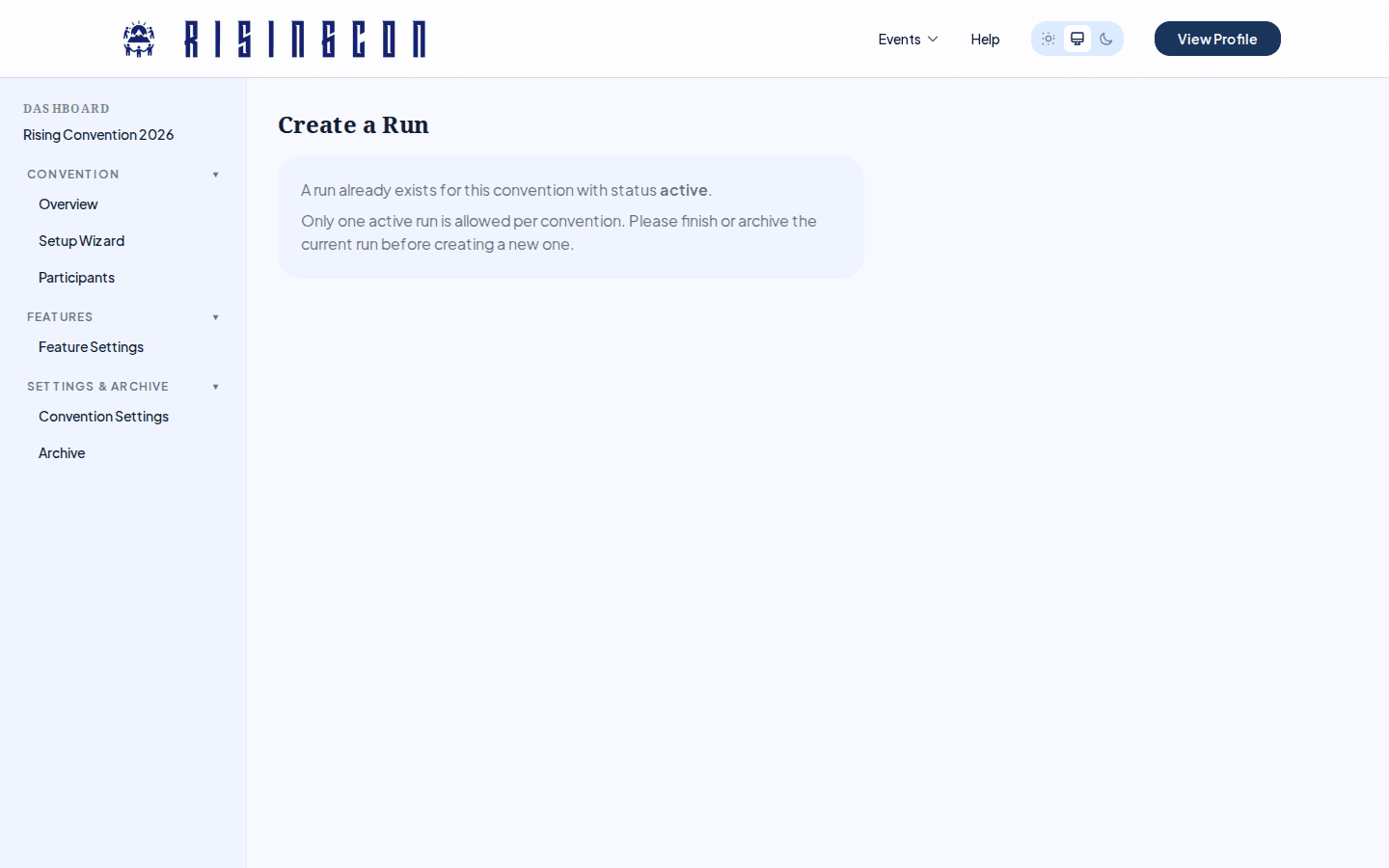 The Create Run form showing date, location, and registration fields
Navigate to your convention Overview and click Create a Run. The run form requires your convention to already be approved.
Run Form Fields
Dates and Times
| Field | Required | Notes |
|---|---|---|
| Start Date & Time | Yes | When the convention event begins. |
| End Date & Time | Yes | When the convention event ends. |
| Registration Opens | No | When registration becomes available to participants. |
| Registration Closes | No | When registration is automatically closed. |
Location
The location field uses address autocomplete filtered to your convention's target regions. Select an address from the dropdown suggestions — typing a free-form address without selecting from the list will show a warning.
Registration & Capacity
| Field | Required | Notes |
|---|---|---|
| Registration Fee (€) | Yes | Set to 0 for a free event. |
| Total Seats | No | Leave blank for unlimited capacity. When seats are full, new registrations go to a waitlist. |
| Payment Link | No | A URL to an external payment platform, kept as a reference link in your organiser dashboard (and visible to platform admins). It is not shown to participants — share your payment details with them yourself (for example in the confirmation you send), then record payments using the per-participant payment confirmation on the Participants page. |
Options
| Toggle | Effect |
|---|---|
| Open to Other Regions | Allows participants from outside the convention's target regions to register. |
Click Create Run to save.
Run Lifecycle
Draft ──► Pending ──► Approved ──► Active ──► Finished ──► Archived
                ╚──► Denied
| Status | What this means | Action available |
|---|---|---|
| Draft | Newly created. Not submitted. | Submit for Approval |
| Pending | Submitted for admin review. | — (waiting) |
| Approved | Admin has approved. Ready to activate. | Activate Run |
| Denied | Admin has denied. Reason shown in overview. | Edit & resubmit |
| Active | The convention is live. Registration is open (if configured). | Finish Run |
| Finished | The event has ended. | Archive Run |
| Archived | Historical record. Data preserved. | — |
The action button in the Overview changes based on the current run status.
You cannot activate a run unless both the convention and the run have been approved by a platform admin.
Editing a Run
Click Edit Run from the overview (available for Draft, Pending, Approved, and Denied statuses).
Important: Editing most fields on an Approved run (such as location, dates, seat count, or fee) resets it to Pending — the admin must re-approve before you can activate it.
The following can be changed without losing approval: the registration window dates, the manual registration override, Open to Other Regions, and the check-in setting. These are considered minor operational changes.
Active and Finished runs cannot have their core fields edited. For an Active run, the registration window, the manual override, Open to Other Regions, and check-in are managed from the Overview page instead.
Registration Control
When a run is Active, a Registration Control panel appears in the overview. At the top of the panel you can edit the Registration Window — change the Opens / Closes dates and click Save, even while the run is live.
Below the window are three override buttons:
| Button | Effect |
|---|---|
| Force Open | Forces registration open immediately, regardless of the configured window. |
| Force Closed | Forces registration closed immediately. |
| Use Schedule (Auto) | Resets to automatic — registration opens and closes based on the Registration Opens / Registration Closes dates. |
The current registration mode is displayed above the buttons: Manually forced open, Manually forced closed, or Auto · follows registration window.
Forcing registration open or closed never changes your saved window dates — switching back to Use Schedule (Auto) picks the schedule up exactly where you configured it.
The panel also contains the Enable check-in toggle, which allows participants to be marked as attended on the Participants page. The toggle can only be switched while registration is closed — close registration first if you need to change it.
Finishing and Archiving a Run
When the event is over, click Finish Run to mark it as finished. Finished runs are read-only — participants can no longer register, and the participant list and schedule cannot be modified.
Finished runs are archived automatically after four weeks. You do not need to trigger this manually. When archived, a statistical snapshot is created (participant counts, demographics, schedule) and stored in the Archive section of your dashboard.
If you want to create a new run before the four-week period, a prompt will appear offering to archive the old run immediately before creating the new one.
Archived runs have their raw participant data removed. The summary statistics are preserved in the archive.