Convention Schedule
The schedule editor lets you build the programme for your convention run. It is accessible from Setup Wizard → Step 4: Schedule.
The schedule is only available once you have created a convention run. Session times must fall within the run's start and end dates.
The Schedule Grid
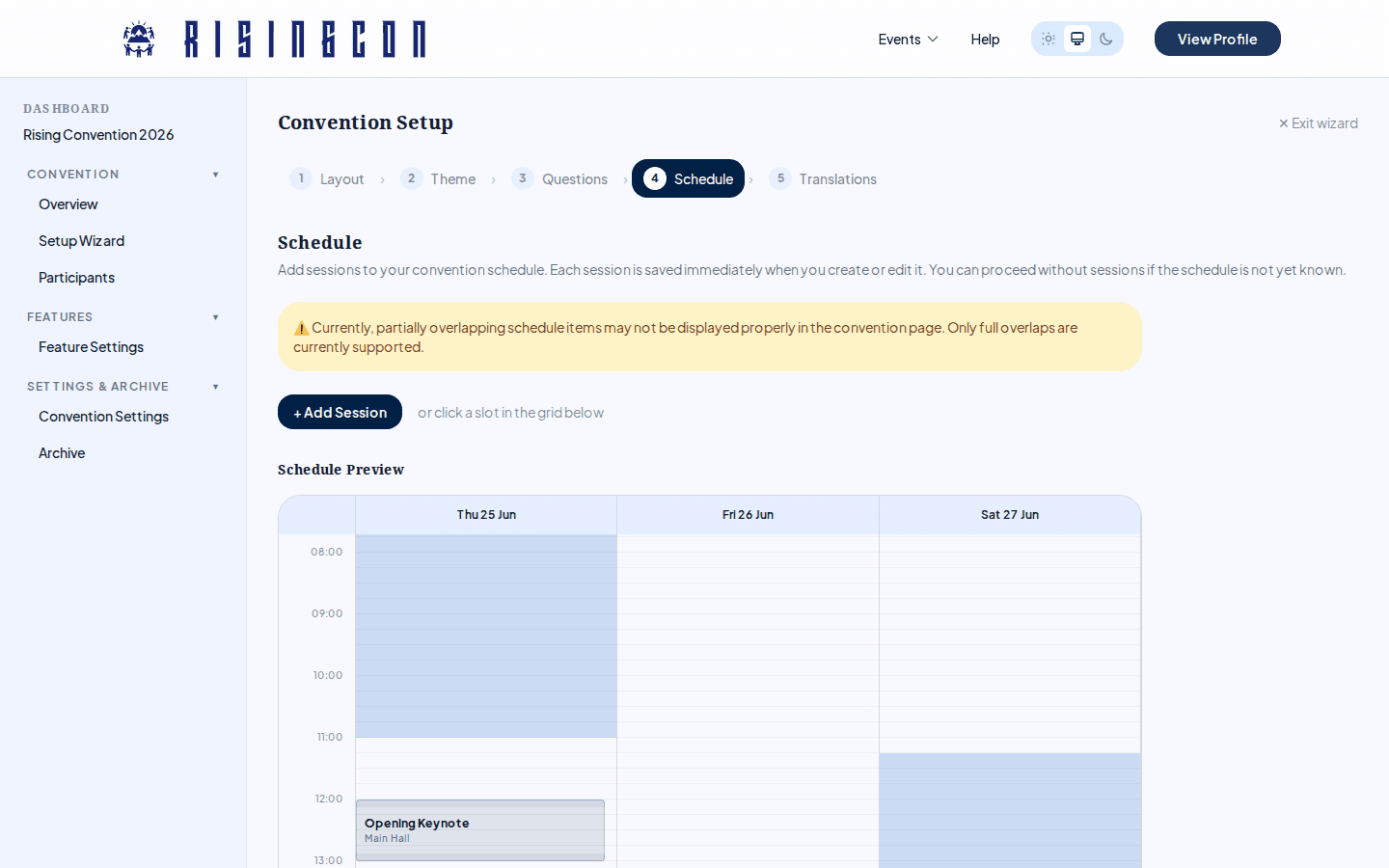 The schedule grid editor showing multiple days as columns with session blocks placed at various time slots
The schedule is displayed as a visual grid showing each day of the run as a column and the hours of the day as rows.
         Mon 24 May    Tue 25 May    Wed 26 May
 08:00  │              │              │
 09:00  │ [Opening     │              │
 10:00  │  Keynote   ] │ [Workshop A] │
 11:00  │              │ [Workshop B] │
 12:00  │              │              │
On mobile, one day is shown at a time. Use the day tabs at the top to switch between days.
Clicking an empty slot in the grid opens a new session form with the start and end time pre-filled.
Session Fields
| Field | Required | Notes |
|---|---|---|
| Title | Yes | The session name shown on the grid and on the public schedule. |
| Description | No | Shown in the session list and on the public page. |
| Speaker | No | Name of the presenter or facilitator. |
| Location | No | Room name or physical location. |
| Start Time | Yes | Must be within the run window. |
| End Time | Yes | Must be after the start time, and within the run window. |
Adding a Session
Click + Add Session or click any empty slot in the grid. Fill in the fields and click Create. The session appears on the grid immediately.
Sessions are saved individually and immediately — there is no batch save. Each create, edit, or delete is persisted as soon as you confirm it.
Editing a Session
Click Edit on a session card in the list below the grid, or click the session block in the grid itself. Update the fields and click Update.
Moving Sessions (Drag & Drop)
You can drag a session block to move it — vertically within the same day to change the time, or horizontally into a different day column to move it to another date. The duration is always preserved. The session is saved automatically after a successful drag.
You can also drag the top or bottom edge of a session block to resize it (changing the start or end time).
Partially overlapping sessions (sessions that share some but not all of their time slot) may not display correctly on the public convention page. Full overlaps (one session completely within another) are supported.
Deleting a Session
Click Delete on a session card in the list below the grid. The session is removed immediately.
Schedule Restrictions
- The editor is fully interactive when the run is in Draft, Pending, or Approved status.
- When the run is Active, sessions can still be added, edited, and deleted.
- When the run is Finished, the editor becomes read-only. The grid and session list are still visible but no changes can be made.
Session List
Below the grid, all sessions are listed as cards sorted by start time. Each card shows:
- Title and speaker (if set)
- Start and end time, and location
- Description (if set)
- Edit and Delete buttons (when run is not finished)